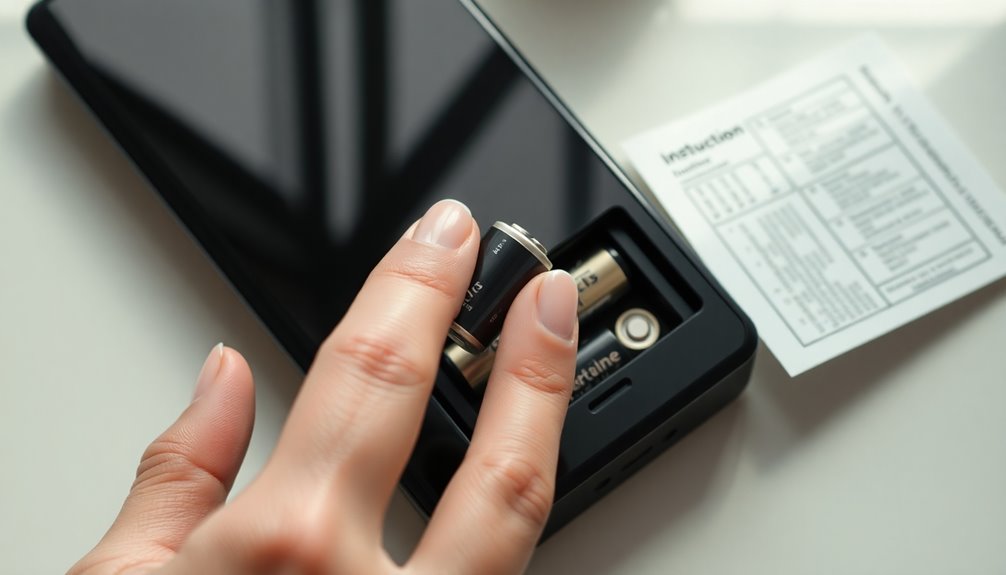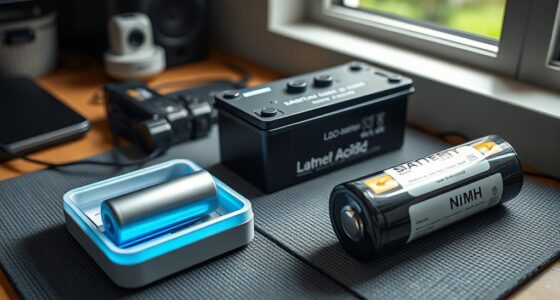

To fix slow charging in your lithium-ion device, start by checking for debris in the charging port and clean it carefully. Use a quality cable and charger to guarantee proper power flow and consider calibrating your battery by fully draining and then recharging it to reset its measurement. If the battery is old or degraded, replacing it may be necessary. For more effective solutions, explore additional troubleshooting steps that can help restore your device’s charging speed.
Key Takeaways
- Perform battery calibration by fully draining the device, then recharge uninterrupted to restore accurate charge measurement.
- Inspect and clean the charging port gently to remove dust, lint, or debris obstructing contact.
- Use high-quality, compatible charging cables and adapters to ensure optimal power delivery.
- Check the internal battery health and consider replacing it if degraded to improve charging speed.
- Regularly maintain the port and avoid using damaged cables to prevent ongoing slow charging issues.
If your lithium-ion device is charging slowly, it can be frustrating and disrupt your daily routine. You might find yourself waiting endlessly for your phone or tablet to reach a full charge, which can be especially inconvenient when you’re in a hurry. The good news is that most slow charging issues are fixable, and understanding the common causes can help you troubleshoot effectively. One of the first steps you should consider is performing a battery calibration. Over time, your device’s battery meter can become inaccurate, making it seem like your device is charging slowly when, in reality, the battery’s reporting is off. To calibrate your battery, fully drain it until the device turns off, then charge it uninterrupted to 100%. This process helps reset the battery’s internal measurement, often restoring normal charging behavior.
Another common culprit behind slow charging is a faulty or dirty charging port. Dust, lint, or debris can accumulate inside the port, obstructing proper contact between the charger and the device. Sometimes, the port itself may be damaged or loose, requiring repair. Before jumping to conclusions, inspect the port carefully—if you see debris, gently clean it using a soft brush or compressed air. If cleaning doesn’t improve the charging speed, the port might need repair or replacement. In many cases, a damaged charging port can be fixed by a professional technician who can replace the port without damaging other components. Avoid attempting complex repairs yourself unless you’re experienced, as improper handling can cause further damage. Ensuring your device’s charging mechanism is functioning properly can prevent ongoing issues and extend the lifespan of your device.
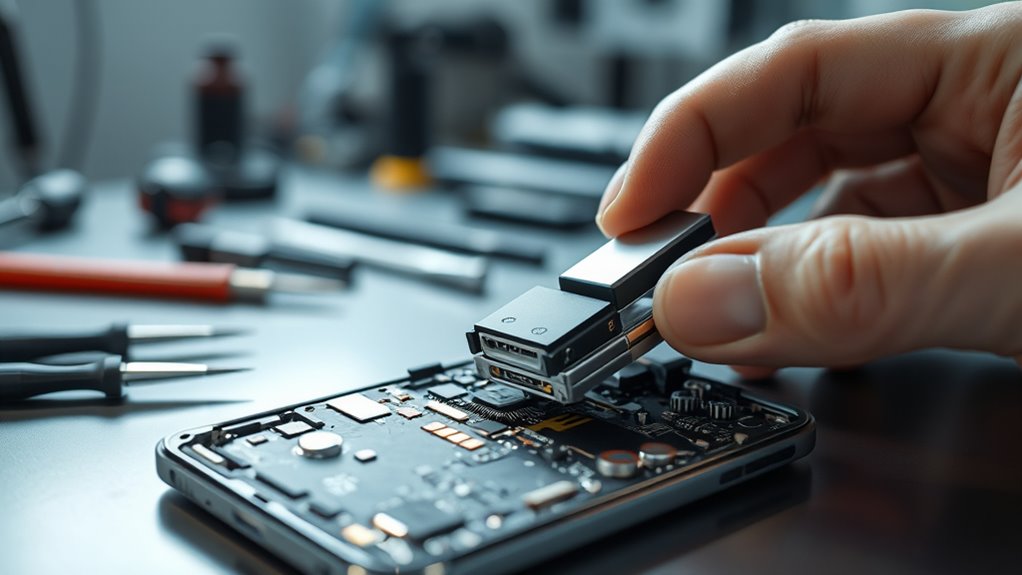
Additionally, consider the charging cable and adapter you’re using. Sometimes, third-party or worn-out cables can result in slow charging. Test with a different, high-quality charger that matches your device’s specifications. Faulty cables or adapters can limit the power flow, making your device take longer to charge. If you’ve tried multiple cables and ports and still face slow charging, it might be time to look into your device’s internal battery health. A degraded battery loses capacity and charge efficiency, which can also cause slow charging. In such cases, replacing the battery might be necessary to restore *ideal* charging speed.
Frequently Asked Questions
Can Software Updates Improve Charging Speed?
Yes, software updates can improve charging speed. By implementing software optimization and firmware upgrades, manufacturers can enhance how your device manages power flow, reducing charging time. These updates often fix bugs and optimize system performance, ensuring your lithium-ion device charges more efficiently. Keep your device updated regularly, as this can lead to faster charging and better overall battery health.
Is It Safe to Use Third-Party Chargers?
Using third-party chargers can feel like gambling with your device’s safety, so proceed with caution. Not all third-party chargers are compatible with your device, risking damage or safety hazards. Always check charger compatibility, verify it meets safety standards, and opt for reputable brands. While they might be cheaper, the potential cost of damage or safety risks outweighs the savings. Protect your device by choosing trusted, compatible chargers.
Do Temperature Changes Affect Charging Times?
Yes, temperature changes affect charging times. When your battery temperature is too high or too low, it can slow down charging efficiency because the device’s system adjusts to protect the battery’s health. Ideally, keep your device in a moderate temperature environment to guarantee ideal battery temperature. This helps maintain consistent charging times and prolongs your battery’s lifespan. Avoid extreme temperatures for the best charging performance.
How Do I Reset My Device’s Battery Settings?
You might find that resetting your device’s battery settings helps improve performance. Start by performing a battery calibration: fully charge your device, then let it drain completely before charging again. This resets the power management system, optimizing battery readings. During this process, you could notice faster charging and better battery life. Regular calibration keeps your device’s battery health in check, ensuring accurate power management and preventing slow charging issues over time.
Can Replacing the Battery Fix Slow Charging?
Replacing the battery can fix slow charging if battery degradation is causing it, as a worn-out battery can’t hold or receive charge efficiently. However, if the charging circuitry is faulty, replacing the battery alone won’t help. It’s essential to diagnose whether the issue stems from the battery itself or the device’s charging circuitry. In many cases, a new battery improves charging speed, but hardware issues may require professional repair.
Conclusion
By following these tips, you can turn your sluggish charging experience into a thing of the past. Think of your device’s battery as a garden—you need to give it the right nutrients and care to thrive. Regularly updating software, avoiding extreme temperatures, and using quality chargers will help it bloom. With a little attention, your lithium-ion device will charge faster and stay healthier, keeping you connected without the slow drain of frustration.